


Digital dashboards that help you identify deviations and make the right decisions.

Capture your deviations and turn them into improvements
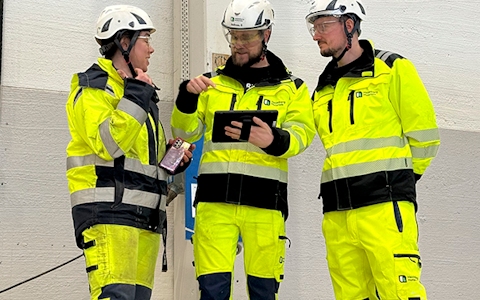
Continuous improvement, Kaizen boards, PDCA and other tools.
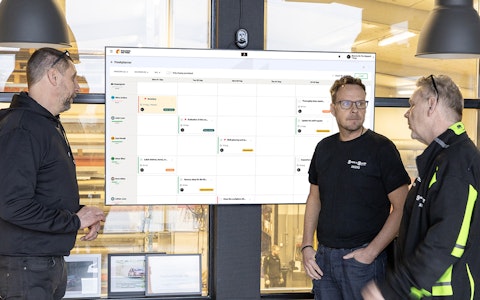
All your team’s tasks, neatly organized in one weekly view.
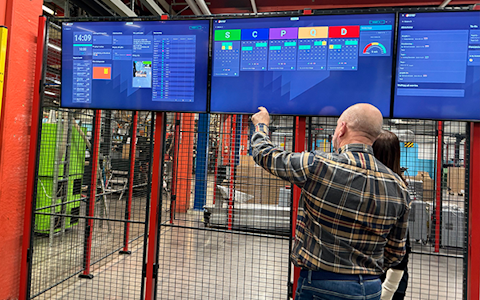
Improve key performance indicators within your specific focus areas with our SQCDP board.

Use the PDCA cycle as a tool to improve both quality and processes
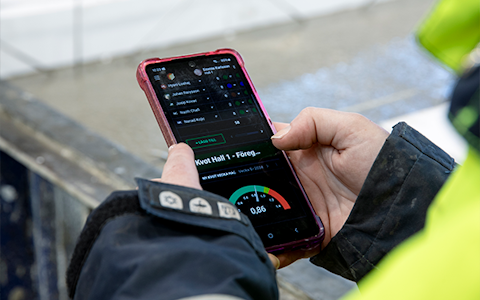
Digital tools for 5S work, recurring audits, and a well-organized workplace.
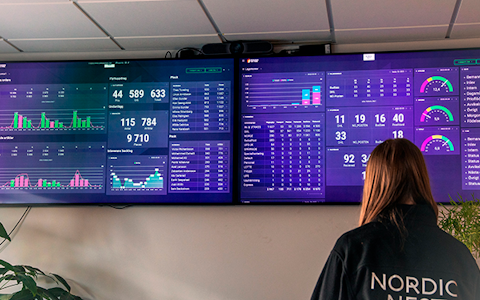
Visualize KPIs and communicate effectively throughout the entire organization.

Basic project management and activity boards.
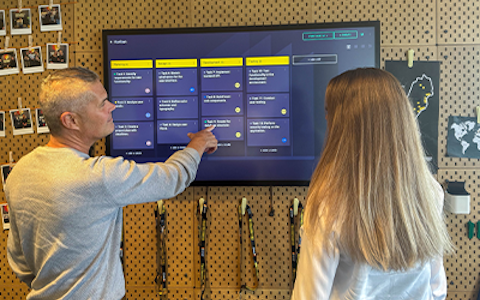
Kanban is a powerful method for visualizing, managing, and optimizing workflows.

Digital dashboards for takt time flow with takt time counter and stop time log.
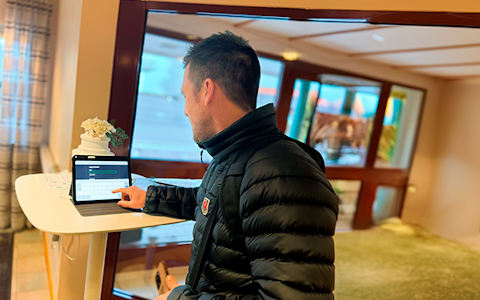
Digital visitor registration provides full control over all planned and executed visits to your business.
There are two ways to upload files in Boards On Fire: either directly via the file integration or through an SFTP account. Here you can learn more about how an SFTP account works and how to create one directly in your environment.
SFTP (SSH File Transfer Protocol or Secure File Transfer Protocol) is a protocol for secure file transfer over a network. Unlike traditional FTP, SFTP uses encryption via SSH, which ensures that both authentication and file transfers are secure. The protocol uses port 22 and allows you to upload, download, delete, and manage files and directories on a remote server.
To get started, you need to create SFTP users in your BoF environment.
To create an SFTP user, go to the admin tab in the top-left corner. Under Integrations, click on File Integration, and then navigate to SFTP Users.
Once you are in the SFTP Users module, you can open the tab in the top-right corner called How to connect. Here you will find step-by-step instructions explaining how and why to set it up. Follow the steps to create an SFTP user, and then you can use that account to upload files to the SFTP account and directly into the file integration in Boards On Fire.
Inside the SFTP Users module, click the Add tab in the top-right corner. Here you will receive your username and password. Note: The password is only shown once, so make sure to save these credentials so you can log in to your client later.
You can regenerate a password if you forget your existing one. This will generate a new password, and it is important that you log in using the new password for the relevant user. Any configurations linked to that user will not work until you have logged in with the new password.
To regenerate a password, click the three dots on the right side of the relevant user and then select Regenerate password.
Free web demo